
 Welcome bonusUp to 2 000 AUD + 100 FS
 Welcome bonusUp to 2 000 AUD + 100 FS


Instant
Quick & easy deposits

Up to 60 mins
Avg time for processing withdrawals

24/7
Customer Support

58,687 AUD
Customer Support
Casino



Live Casino

Promotions
Tournament
Golden Entry
Prize Pool
600 AUD real money + 60 FS
Promo
Install the App
What’s offered
20 no-deposit Free Spins


Level system
- Lvl.1/10Crystal0 - 30 CP
Your success starts here! Collect CP, unlock new levels, and get cool benefits for a bright game.
- Lvl.2/10Quartz30 - 110 CP
Just a little more and you can get:
- 5 FS
- 10 FS
- 15 FS
- 16 FS
- 17 FS
- 18 FS
- 19 FS

Lucky Hills Casino: Games, Bonuses and Payments for Australian Players
| Category | Details |
| Target Market | Australia |
| Currency | AUD |
| Founded | 2025 |
| Licence | Curaçao OGL/2024/923/0383 |
| Games | 7,000+ across 15 categories |
| Providers | 84 |
| Deposit Range | AUD 10–3,000 |
| Withdrawal Range | AUD 50–40,000 per month |
| Support | 24/7 live chat |
| Access | PWA via browser on Android, iOS, Windows and macOS |
Lucky Hills is an online casino targeting Australian players. We operate in AUD throughout, so you never deal with currency conversion on deposits or withdrawals. We launched in 2025 and carry over 7,000 games from 84 providers.
This page covers account setup, active bonuses, the game catalogue and payment options. Topics with their own dedicated pages are summarised here; those without separate URLs receive fuller treatment below.

Getting Started at Lucky Hills Casino
Our official access route is the website, which runs as a Progressive Web App. You install it to your home screen or desktop for quicker return visits. No separate download is needed.
Registration and first login
Registration and login are separate steps. You create your account once, then log in on each return visit. One-time authorisation stores your credentials so future sessions load without re-entering your details.
Follow these steps to go from a new browser tab to a verified account:
- Open your browser and go to the Lucky Hills website.
- Click the registration button and complete the sign-up form with your personal details.
- Log in with your new credentials. Your authorisation is stored for faster future access.
- Go to Profile → Verification tab to start identity checks before your first withdrawal.
- Upload one accepted document: ID card, passport, residence permit or driver’s licence. Upload both sides if your document has two sides.
- Complete the live selfie step. A head rotation is required. Your document must be valid for at least one month, and all text must be clearly readable in your photo.
After verification
KYC is a one-time process. Once complete, you deposit, play and request withdrawals without repeating it. Your document photo must not be blurry. Any text that is obscured will delay the process.
If you want step-by-step installation instructions for Android or iOS, the luckyhills casino app review covers the full install procedure for each platform.
Active Bonuses and How to Claim Them
Our bonus programme covers welcome offers, weekly recurring promotions and live network tournaments. The offers below were active as of 6 July 2026. You activate each bonus at the cashier when choosing your deposit amount. Bonuses are not applied automatically.
Welcome offers
- First deposit: 100% match up to AUD 1,000. Plus 100 free spins — 20 per day over five days. Minimum deposit is AUD 30. Wagering is x40. Bonus is valid for 7 days. Maximum win is AUD 3,000.
- Second deposit: 200% match up to AUD 1,000. Same AUD 30 minimum, x40 wagering and 7-day validity apply.
You activate one bonus per deposit. Multiple bonuses can be active at once. We wager them in the order you activated them.
Weekly recurring promotions
- Wednesday free spins: Credited every Wednesday between 00:01 and 23:59 UTC. You need at least two deposits to qualify. Tiers: AUD 30 deposit earns 20 spins; AUD 75 earns 30 spins; AUD 150 earns 50 spins. Wagering is x40. Spins expire after one day.
- Sunday gift: A percentage cashback on your weekly deposits, credited every Sunday. Tiers: 10% up to AUD 15 (AUD 30 deposit); 20% up to AUD 75 (AUD 75 deposit); 30% up to AUD 150 (AUD 150 deposit). Wagering is x40. Valid for one day.
- Weekly cashback: Credited every Thursday at 00:00 UTC. Rate depends on your loyalty level — from 2% at Luckyway 4 up to 10% at VIP Diamond. Wagering on this cashback is x5.
Network and provider tournaments
- Spinoleague 2026: A 52-round network tournament running until March 2027. Total prize pool is AUD 19,920,000. Each round pays AUD 365,200–415,000 based on total multiplier amounts.
- Million Drops Football Frenzy (BGaming): Running through July 2026. Prize pool is AUD 107,250 across 5,157 random prize drops. No minimum bet applies. We credit prizes within 72 hours after the tournament ends.
- Juicy Multiplier Rush (1Spin4Win): Running 3–16 July 2026. Prize pool covers 1,016 multipliers up to x500. Random multiplier drops follow successful spins.
The maximum bet while any bonus is active is AUD 7.50. Non-sticky bonuses are wagered before your real-money balance. If your bonus balance drops below AUD 0.75, we cancel it automatically. To check which bonuses are currently active on your account, use the luckyhills casino app login page.
Games and Providers
Our catalogue holds over 7,000 games from 84 providers. Quick spins, longer live table sessions and tournament play all sit within the same browser-based library. No separate app download is needed to access the full range on mobile or desktop.
Slot categories and formats
We organise slots across eight formats. Each filter targets a different play style:
- Hot Slots — current high-traffic titles
- Bonus Buy — games where you purchase the bonus round directly
- Jackpot — progressive and fixed jackpot slots
- Drops & Wins — prize-drop network tournaments
- Megaways — variable-reel-count slots
- Crash Games — multiplier-based titles such as those from Spribe and Aviatrix
- Bingo — bingo-format games
- Megaways — variable reel-count format
Table games and live casino
Roulette, Blackjack, Poker and Baccarat run as both standard and live versions. Our live casino draws from 21 providers. Titles from Imagine Live number 66; Live Vegas contributes 45; SA Gaming adds 36. Evolution, Lucky Streak, Betgames, SuperSpade Games, Creedroomz and others also supply live tables. Game Shows and Bingo Live sit alongside the main live section.
Slot providers
Larger slot catalogues include VoltEnt (278 titles), BGaming (208), 1Spin4Win (198), NetGame (134) and Booongo (92). Other active providers include Gamzix, Playson, Betsoft, Yggdrasil, Spribe, Smartsoft Gaming and Mascot Gaming, among many more.
The luckyhills casino sign up bonus page walks through account creation so you can access the full catalogue straight away.
Deposits and Withdrawals
We accept AUD for all transactions. Australian players may use debit cards but not credit cards. The cashier covers cards, e-wallets, vouchers and cryptocurrency.
Deposit options and limits
- The overall minimum deposit is AUD 10. Visa and Mastercard require a minimum of AUD 20.
- The maximum deposit is AUD 3,000. MiFinity allows up to AUD 3,000 per transaction.
- Neosurf accepts deposits up to AUD 1,000. CashtoCode Classic accepts up to AUD 1,600.
- Apple Pay carries a per-transaction maximum of AUD 500.
- Cryptocurrency options include Bitcoin (AUD 20–2,000) and Ethereum ERC-20 (AUD 100–2,000). Additional coins accepted: Litecoin, Tether (TRC-20, ERC-20, BEP-20), TRON, Bitcoin Cash, Solana, USD Coin, Dogecoin, DAI, XRP and Binance.
Withdrawal options and process
- The minimum withdrawal is AUD 50. The maximum is AUD 40,000 per month.
- Complete KYC at Profile → Verification tab before submitting your first withdrawal request.
- Cashier methods listed for outgoing transactions include eZeeWallet, Inpay Bank Transfer and MiFinity, alongside cards and crypto.
- Check the cashier at the time of your transaction to see which direction each method supports.
Not every method listed in the cashier supports both deposits and withdrawals. Confirm the direction in the cashier before you fund your account if you plan to withdraw by the same route. The lucky hills withdrawal page covers per-method limits and processing details.
Licence, Support and Operational Facts
We hold a Curaçao licence under number OGL/2024/923/0383. This licence type is common among internationally operating online casinos. It places regulatory obligations on us, including complaint-handling procedures. It is not a domestic Australian licence. Weigh that distinction when deciding whether to play.
The operational facts you can act on directly are these: KYC runs through a documented process at Profile → Verification tab. You upload one of four accepted document types and complete a live selfie. Withdrawal limits reach AUD 40,000 per month. Our cashier lists over 20 payment methods across cards, e-wallets, vouchers and crypto.
We launched in 2025. A shorter operational history means less long-term data on payout consistency or dispute resolution. That is a factual limitation, not an assessment. The structured KYC process and documented bonus conditions are observable facts. They are not a substitute for a multi-year track record.
Support runs via live chat 24 hours a day, seven days a week. VIP members receive priority personalised care around the clock. Use live chat to raise account management requests, not only game or payment queries. Completing KYC early and keeping your deposit and withdrawal records gives you a clear reference point if a dispute arises.
Safer Play and Account Controls
Gambling should stay within limits you set yourself. Difficulty staying within those limits is a signal to use account controls or seek outside support — not to adjust your budget.
Our 24/7 live chat is the direct route for any account concern. This includes requests to restrict or close your account. State your request clearly. Support agents are available at all hours, so you do not need to wait for a business window.
For independent help, Gambling Help Online (Australia) operates outside our casino. It provides confidential support at no cost. Reaching out to an external service gives you advice that is not connected to your account or play history.
Bonus terms set a maximum bet of AUD 7.50 while a bonus is active. Staying within that limit protects your bonus balance. Non-sticky bonuses cancel automatically when the balance drops below AUD 0.75. This limits extended bonus play without requiring you to intervene manually.
VIP members have priority support available around the clock. Use it for account management requests early — before a pattern becomes a problem. Account controls work best when you engage them proactively.
Frequently Asked Questions
What licence does Lucky Hills hold?
We operate under a Curaçao licence, number OGL/2024/923/0383. This is an internationally recognised online gambling licence. It is not a domestic Australian licence.
How do I complete identity verification?
Go to Profile → Verification tab. Upload an ID card, passport, residence permit or driver’s licence — both sides if applicable. Then complete a live selfie with a head rotation. Your document must be valid for at least one month and clearly readable.
How do I activate the first deposit bonus?
Select the bonus at the cashier when you choose your deposit amount. It does not apply automatically. The minimum qualifying deposit is AUD 30. You activate one bonus per deposit.
What is the minimum deposit?
The overall minimum is AUD 10. Visa, Mastercard and Apple Pay require at least AUD 20. Ethereum ERC-20 requires at least AUD 100 per deposit.
Can I use a credit card to deposit?
No. Australian players may only use debit cards. Alternatives include Neosurf, CashtoCode Classic, MiFinity, eZeeWallet, Apple Pay and a range of cryptocurrencies.
What happens if my bonus balance drops below AUD 0.75?
We cancel the bonus automatically. Keep your bets at or below AUD 7.50 while a bonus is active. Exceeding that limit risks voiding the bonus before the balance reaches the cancellation threshold.
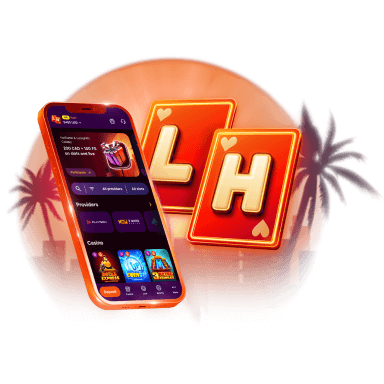
Lucky Hills is always with you!
Install the application and participate in thePlay with the App promo.
We use innovative installation technology directly from the browser. For any operating system.